Your first page
Open the editor, write a multiple-choice question, mark the right answer, see what your learner will see.
You’ll author a single multiple-choice question, set the right answer, and look at it in learner view. Five minutes.
Open the editor
Open the editor in the LMS your institution has installed it in, or open the hosted playground at playground.coursekit.app.
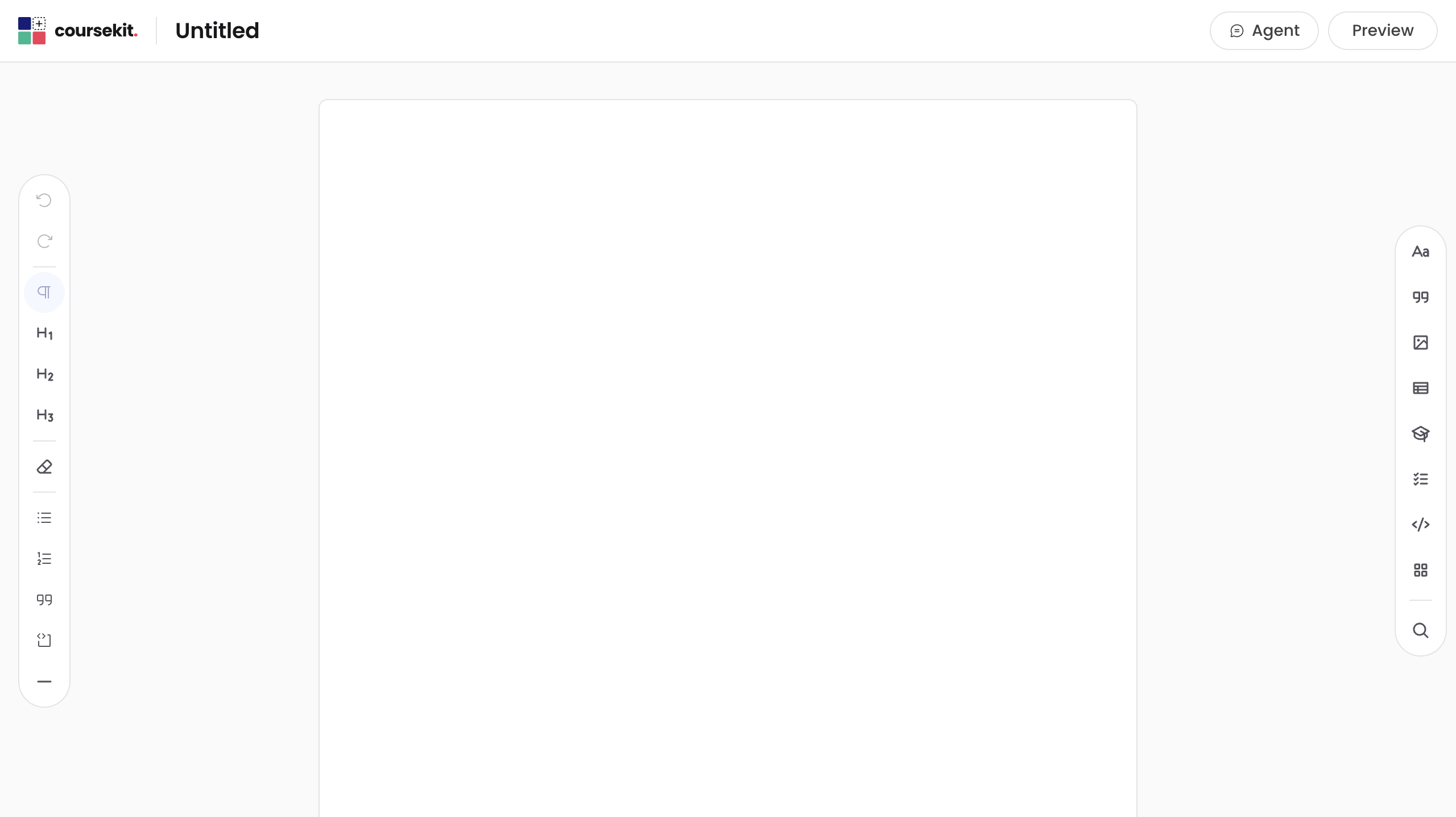
The editor opens on a blank page with a flashing cursor at the top.
Add a multiple-choice question
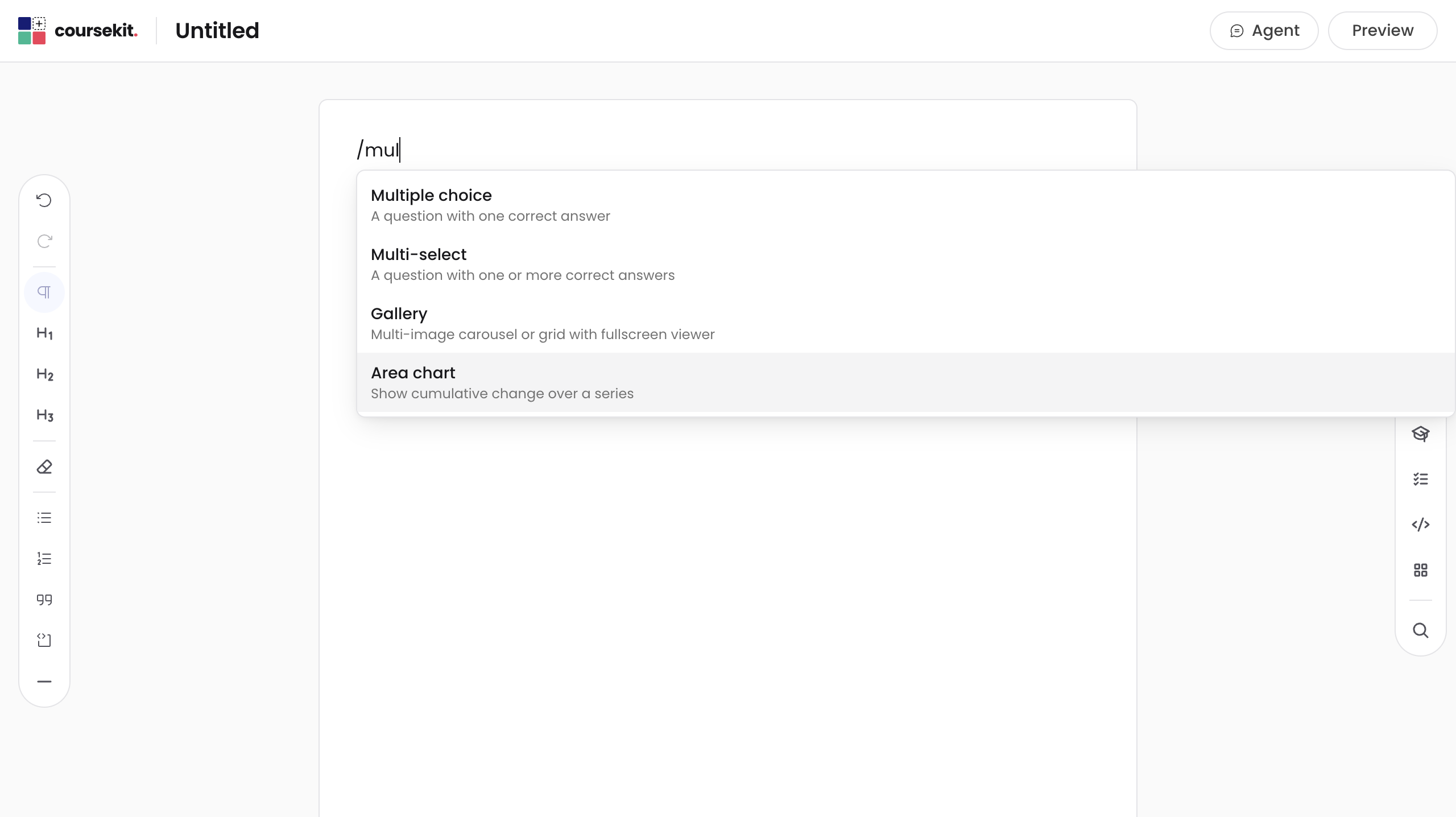
Type / anywhere on the page. A menu appears listing every block you can
add. Click Multiple choice, or type “multiple” and press Enter.
A multiple-choice block appears with a placeholder prompt and two empty choices.
Write the question
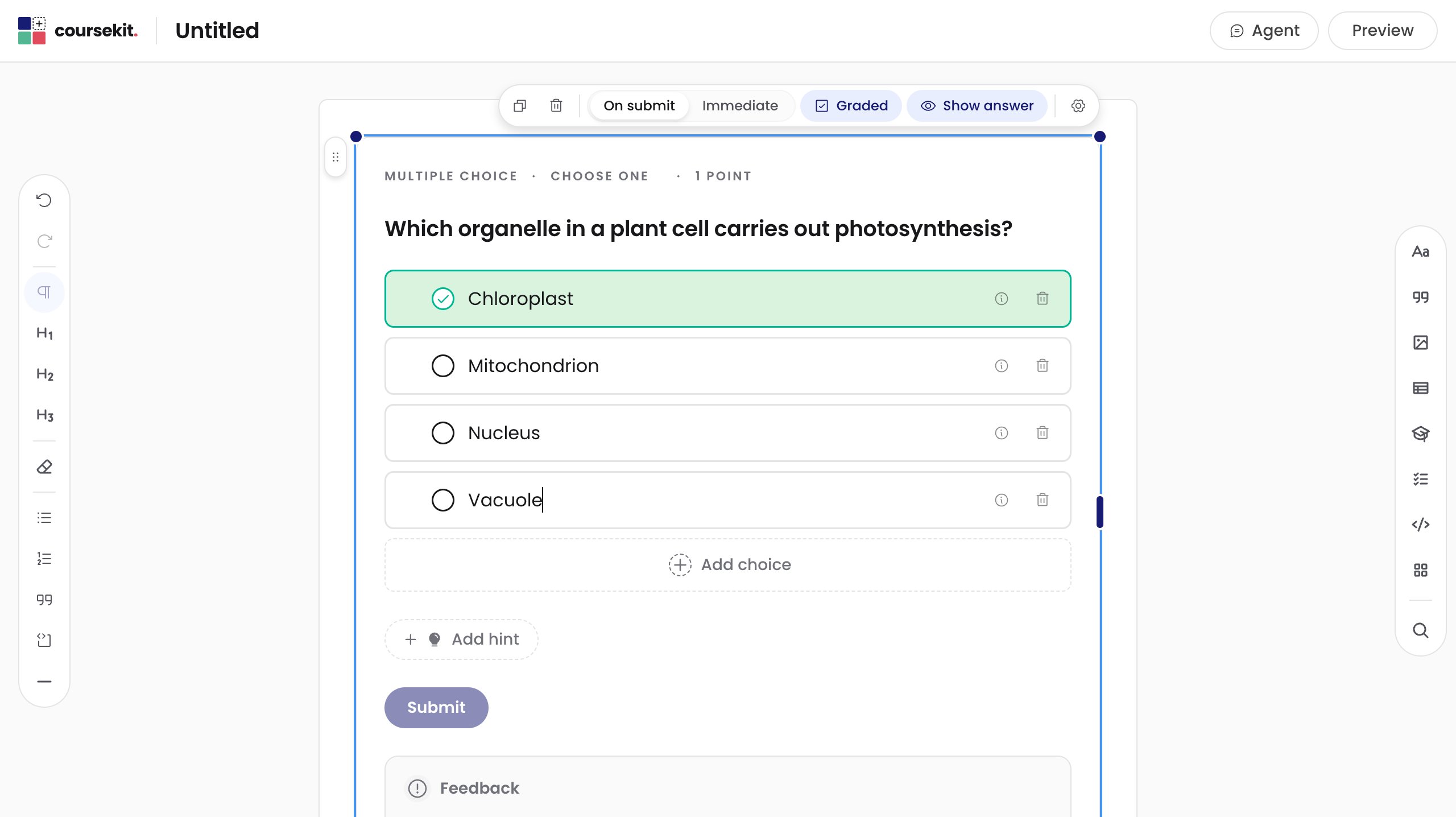
The placeholder reads Ask your question. Click on it and type your question.
Each empty choice reads Enter your choice. Click the first one and type the first answer. Press Enter to move to the next choice. To add more choices, click Add choice below the last one.
Mark the right answer
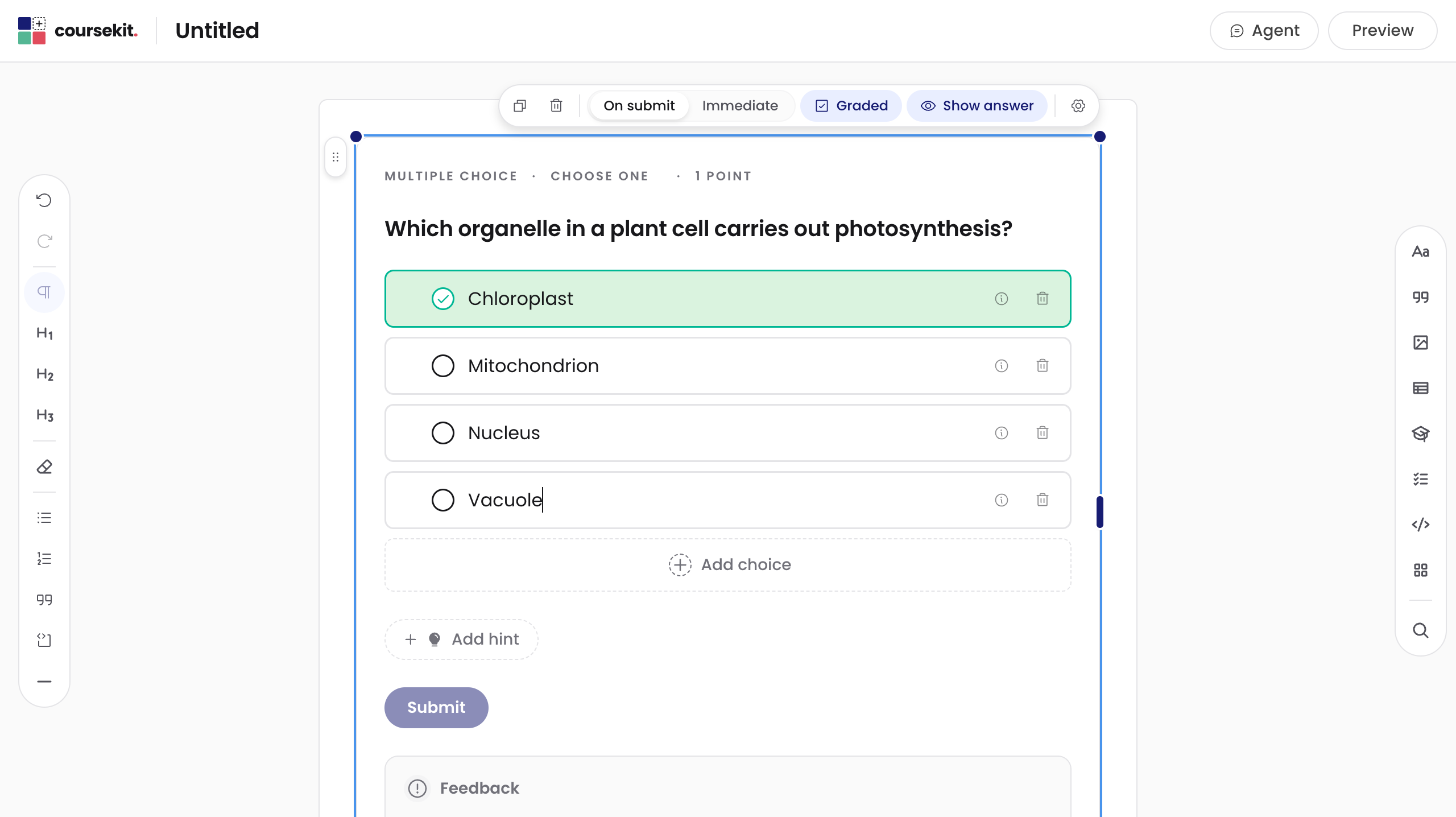
To the left of each choice is an empty circle. Click the circle next to the correct answer. The choice fills with a teal outline and the correct indicator appears.
There is only one right answer in a multiple-choice question. Clicking a different circle moves the correctness mark.
See what your learner sees
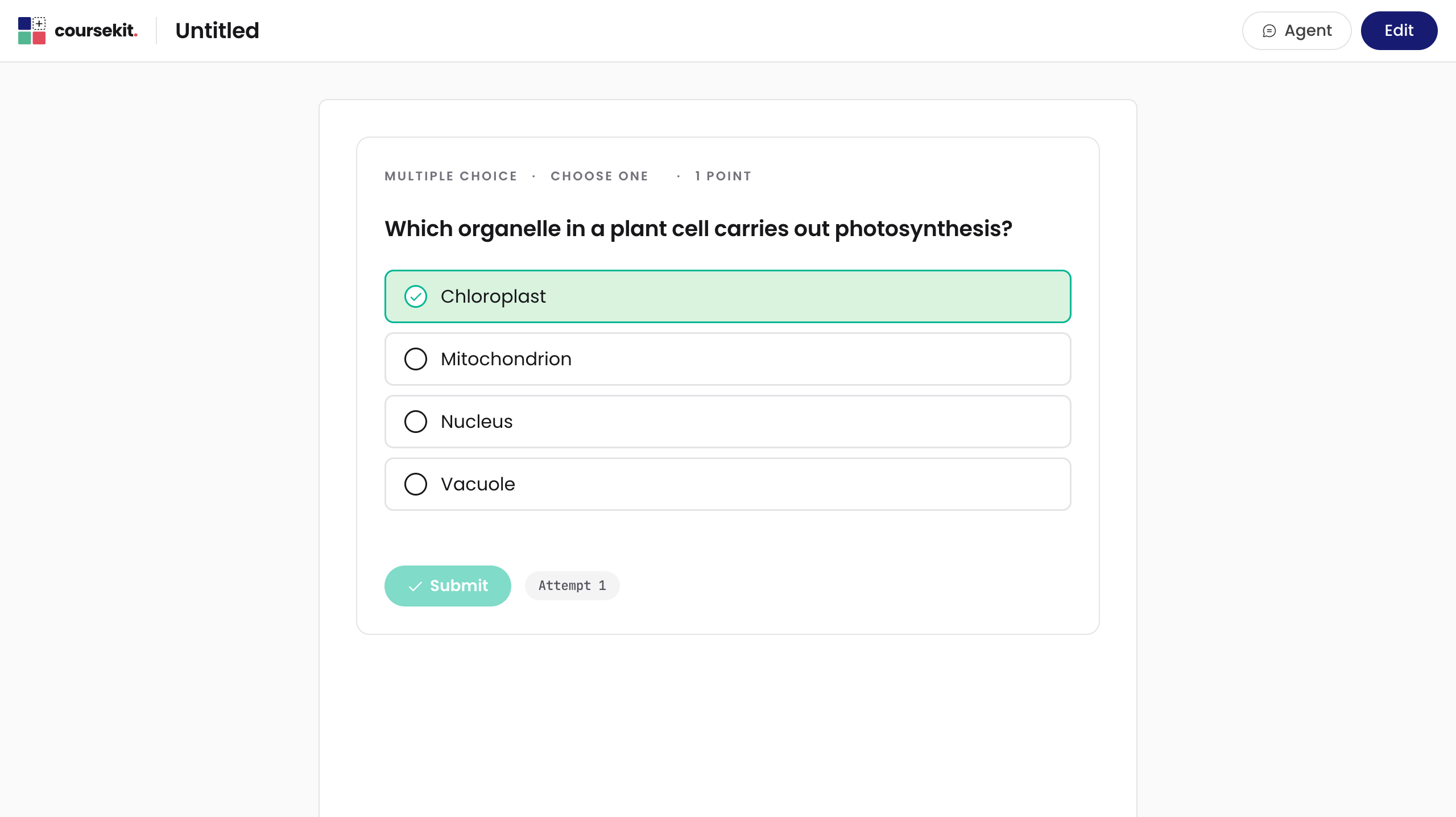
Open preview to see the learner view. In preview, the author chrome disappears: no editable text fields, no marking-correct circles, no settings sheet. You see the question as the learner will see it.
Click a choice as if you were the learner. The correct choice fills with teal and a check; an incorrect choice fills with coral and a cross. Click Try again to reset and try a different choice.
When you’re done, switch back to the editor to keep authoring.
What’s next
That’s the whole authoring loop. Every block in coursekit works the same way: edit in the author view, switch to preview to see the learner experience, and correctness is signalled the same way every time.
From here:
- The editor walks you through every way to add and edit blocks.
- How to has recipes for the most common authoring tasks, starting with multiple choice.
- Where coursekit runs explains how the page you just wrote ends up inside your students’ LMS.