Moving and resizing
Reorder blocks, drop one block inside another, and resize blocks that support it.
Once blocks are on the page, you can rearrange them and, for some block types, resize them.
Moving a block
Click a block to select it. A drag handle appears on the left edge, just outside its content area. Grab the handle and drag the block up or down. The cursor switches to the grab pointer; other blocks slide out of the way as you drag.
Release where you want the block to land.
The same handle works inside choices and items. In a multiple-choice question, each choice has its own handle on the left; drag a choice up or down to reorder it.
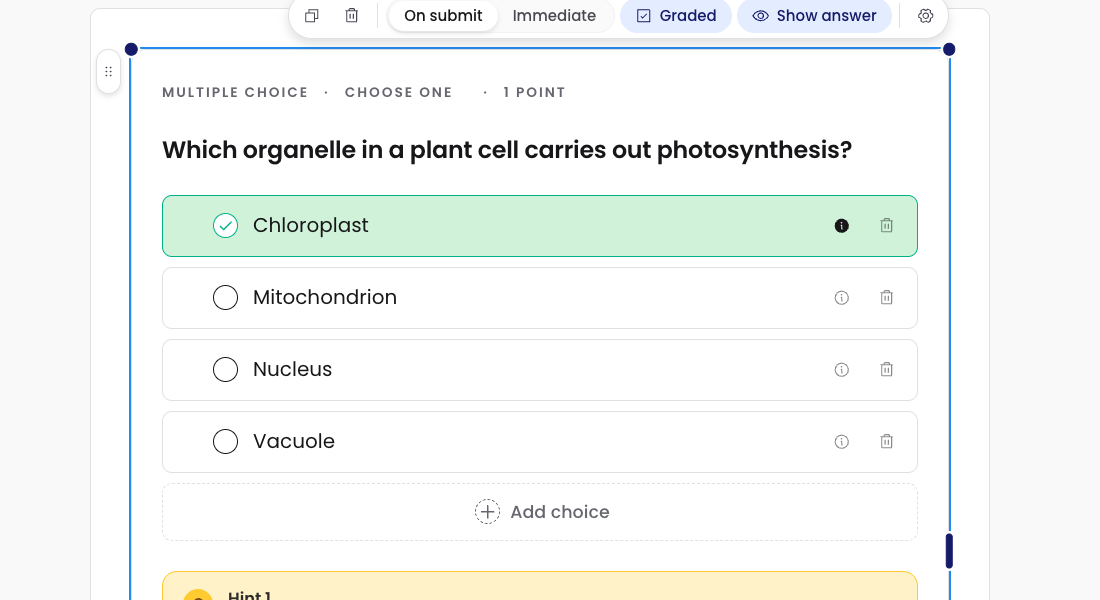
Reordering choices and items
Inside a question, the choices, items, hotspots, or hints all have their own drag handles. The gestures are the same:
- Multiple choice, multi-select, dropdown: drag choices to reorder.
- Sequencing: drag items to set the correct order.
- Matching: drag items in either column.
- Categorise: drag items between bins, or drag bins to reorder them.
When the order matters for grading, the order you set in the editor becomes the correct answer.
Resizing a block
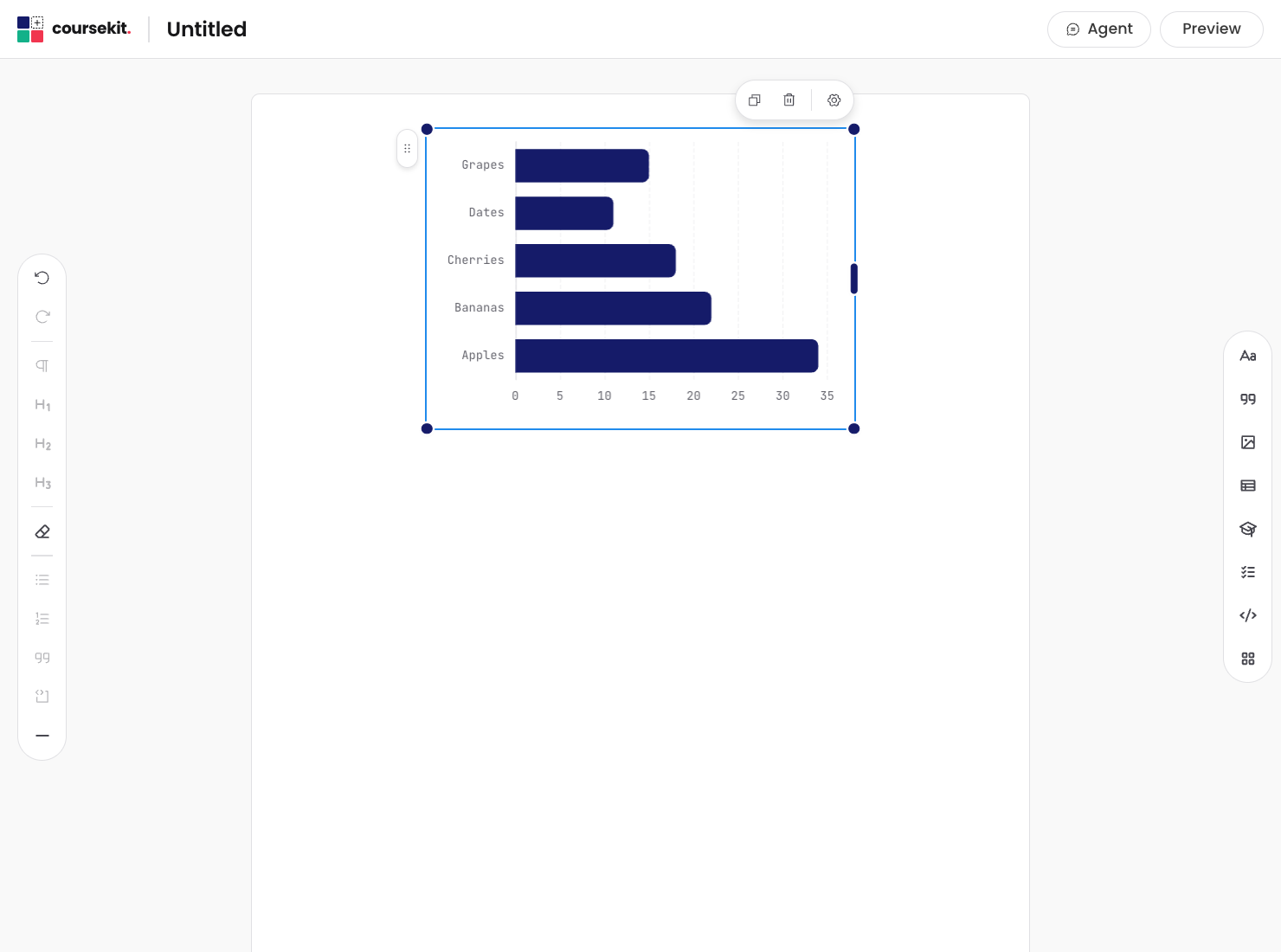
Some blocks support resizing. When you select a resizable block, a frame appears around it with handles on the corners and edges. Drag a handle to resize.
Blocks that resize:
- Images
- Image hotspots
- Galleries
- Annotated figures
- Embeds (YouTube, Vimeo, generic iframe)
- PDF embeds
- Charts
- Text-wrap images
- Figures
Resizing changes how the block displays on the page. It doesn’t change the underlying file or content.
What’s next
- Settings and quick menu covers per-block configuration like points, attempts, and feedback mode.
- Keyboard shortcuts lists the shortcuts that work across the editor.