Editing inline
Writing prose, formatting text, marking the right answer on a question, and writing feedback that the learner reads.
Every block edits in place. You don’t open a panel to write a question; you click on the question text and type. Same for choices, hints, feedback, captions, callout titles.
This page covers the gestures that work the same in every block.
Writing prose
Click anywhere in a paragraph block and type. The block grows to fit. To make a new paragraph, press Enter.
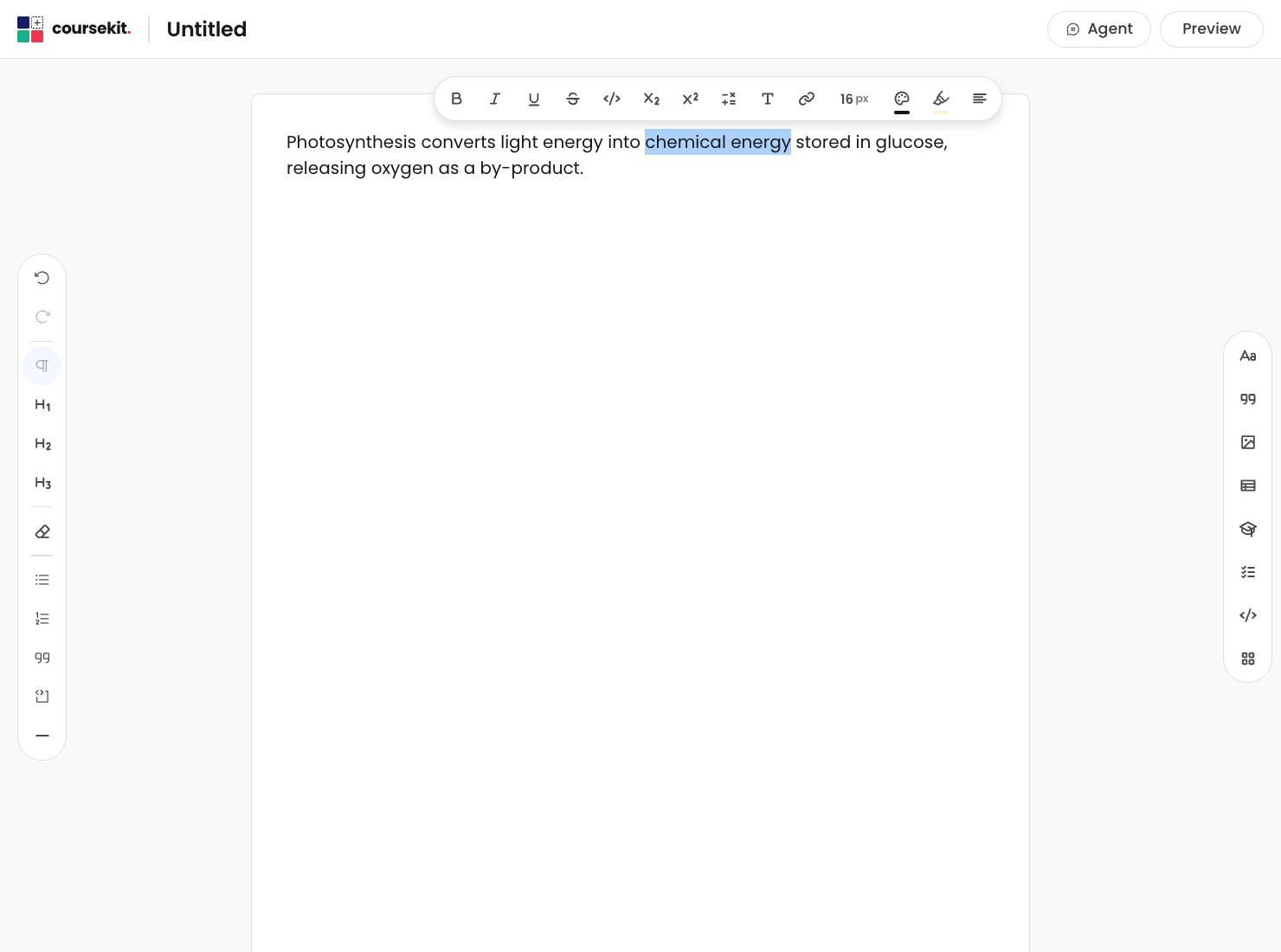
Selecting text reveals a small floating menu with formatting options: bold, italic, strikethrough, inline code, link. The menu follows the selection.
Marking the correct answer
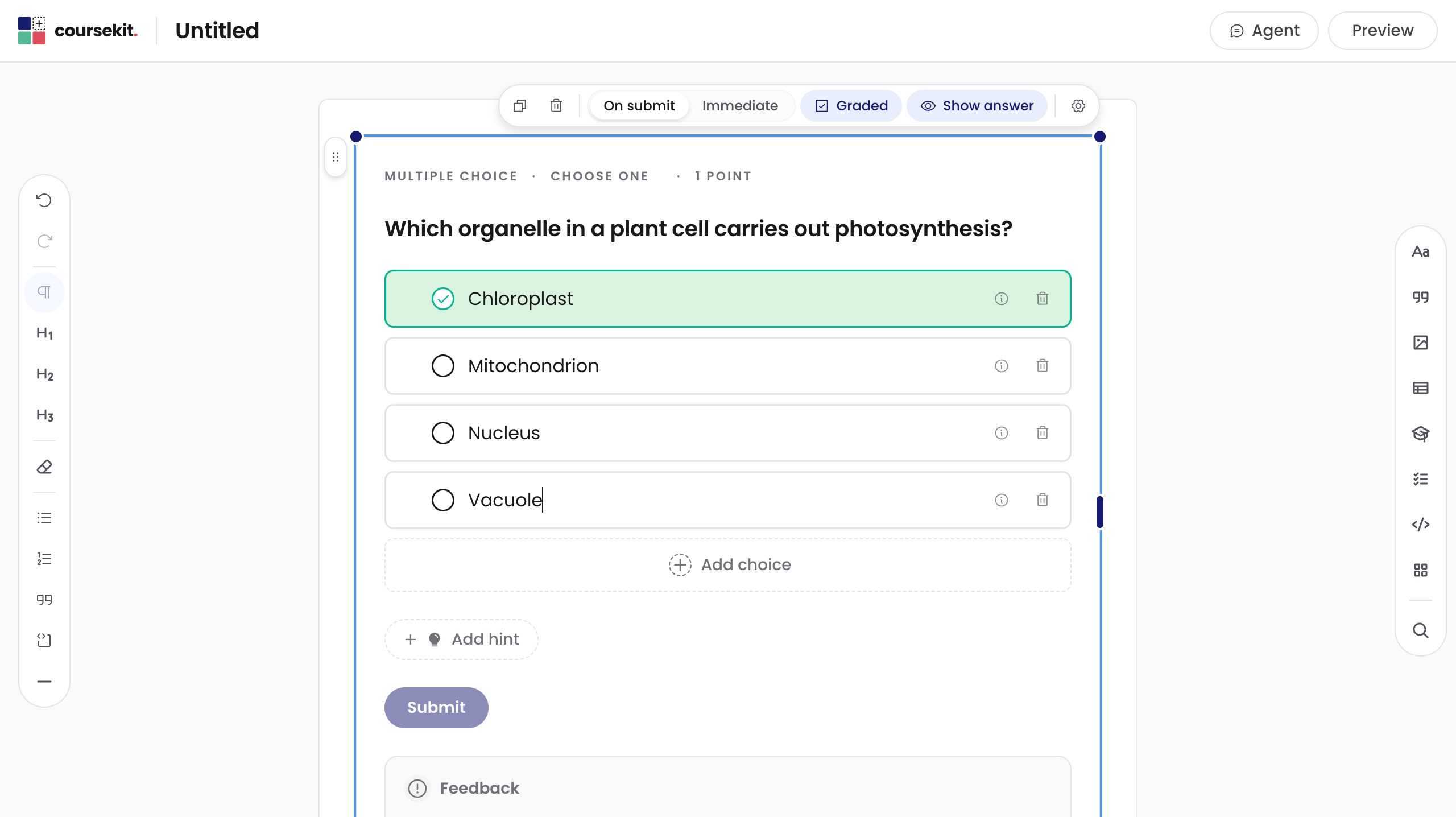
Question blocks (multiple choice, multi-select, dropdown, fill in the blanks, sequencing, matching, categorise, image hotspot) all show an empty circle next to each choice or item. Click the circle to mark that choice as correct.
What the circle does depends on the question type:
- In multiple choice and dropdown, only one choice can be correct. Clicking a different circle moves the mark.
- In multi-select, you can mark multiple choices correct.
- In sequencing, the order you author the items in is the correct order; there’s no per-item circle.
- In matching and categorise, you set the correct pairing or bin for each item directly in the authoring interface.
- In image hotspot, you draw a region on the image and then mark it correct from the region’s settings.
Writing feedback for a choice
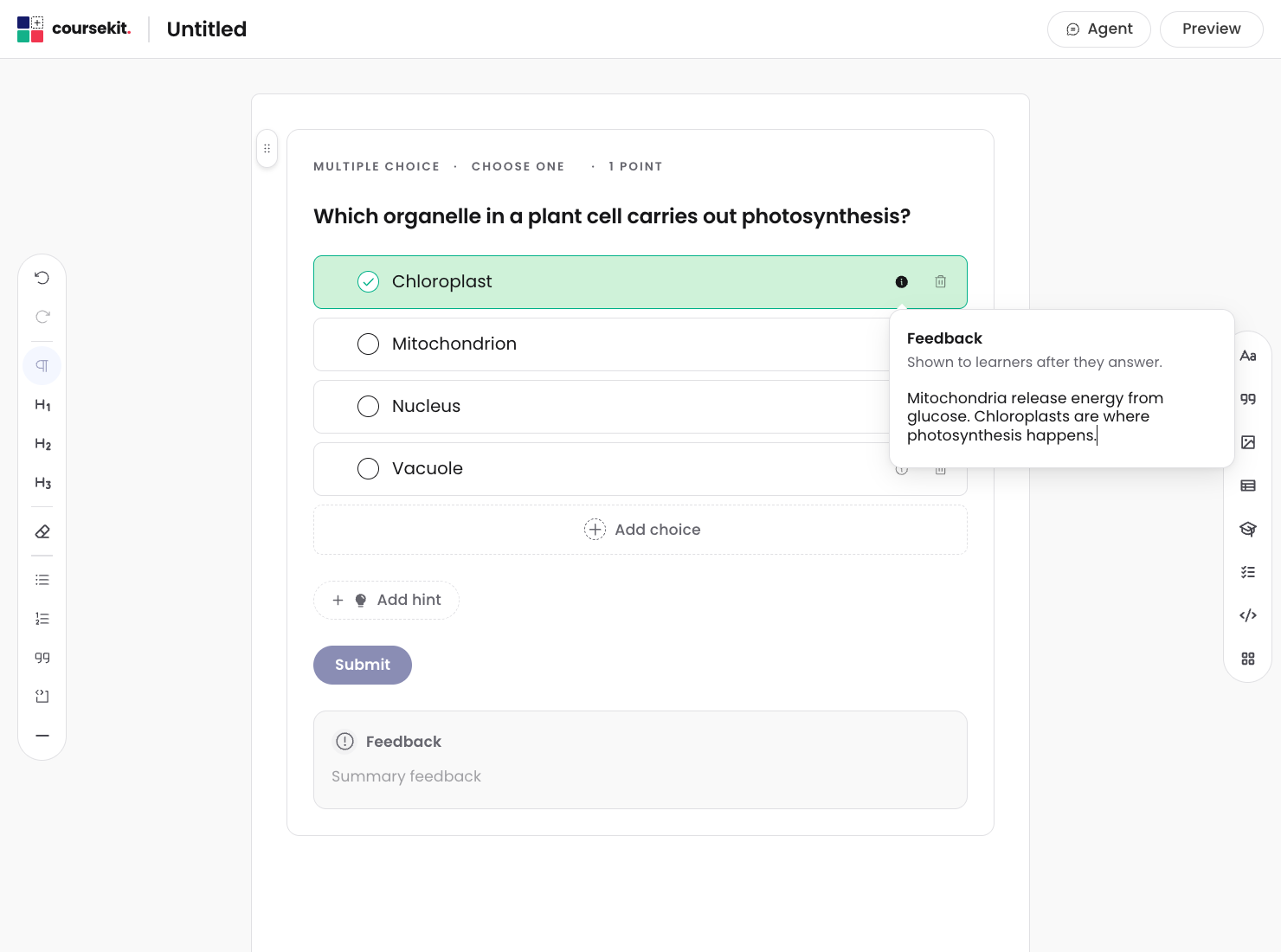
Each choice in a question has a feedback popover. Click the choice’s feedback icon to open a small editor anchored to that choice.
Type the explanation the learner sees when they pick that answer. You can format the feedback with bold, italic, links, and inline code, the same as any prose in the editor.
The feedback you write appears in two places:
- In immediate feedback mode, the learner sees it as soon as they click the choice.
- In on submit feedback mode, the learner sees it after they press Submit.
You can also write summary feedback for the whole question. That shows after the learner submits, regardless of which choice they picked.
Hints
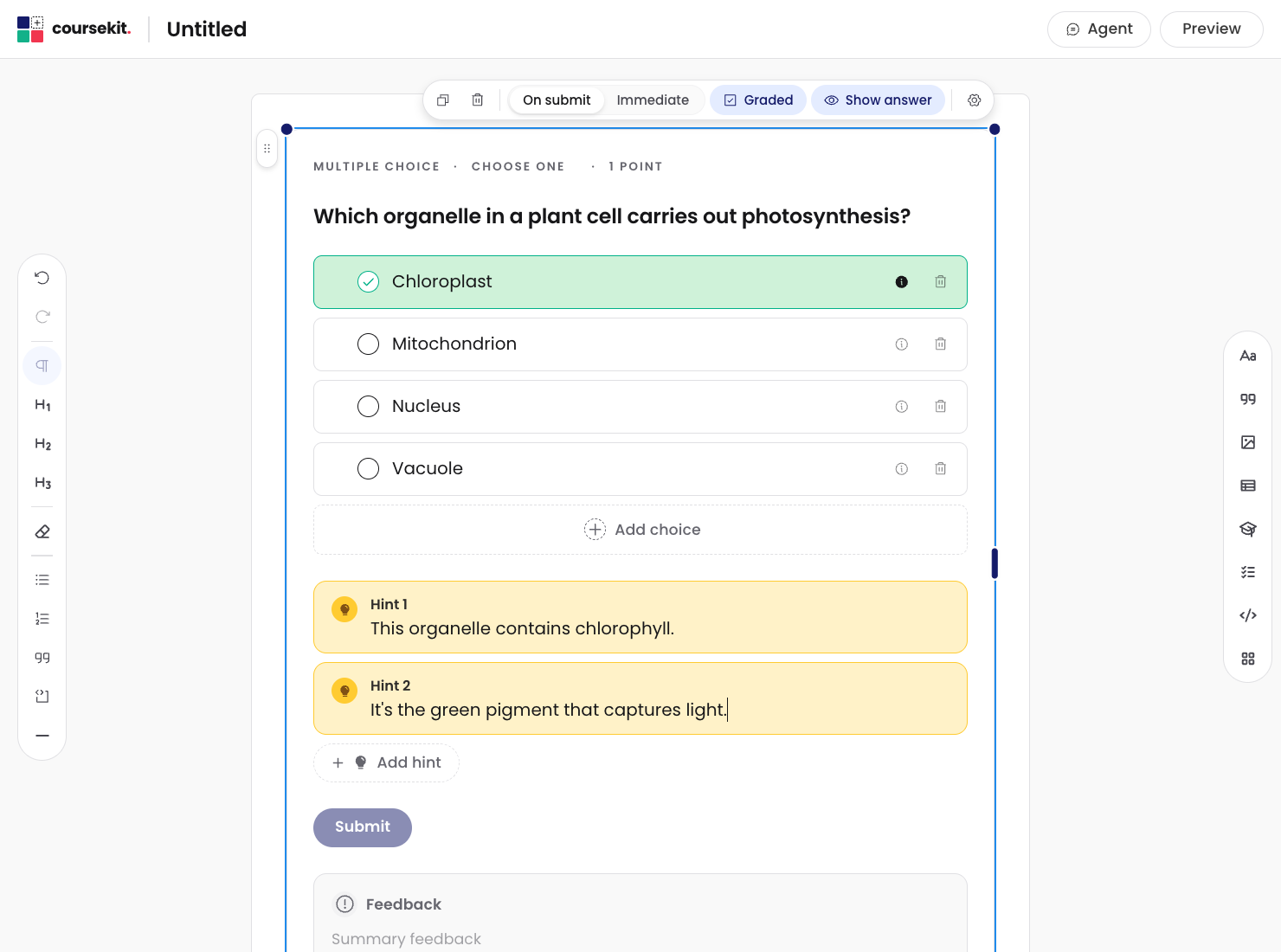
If a question is configured to allow hints, an Add hint button appears below the choices. Click it to add a hint; type the hint text. You can add multiple hints. The learner reveals them one at a time when they get stuck.
Whether hints are visible and how many a learner can use depends on the block’s settings sheet.
What’s next
- Moving and resizing is for rearranging blocks after you’ve added them.
- Settings and quick menu covers per-block configuration like points, attempts, and feedback mode.