Settings and quick menu
Two ways to configure a block: the quick menu for common toggles, the settings sheet for everything else.
Every block has settings. Points on a question, the variant of a callout, the language of a code block, the aspect ratio of an embed. There are two ways to reach them.
The quick menu
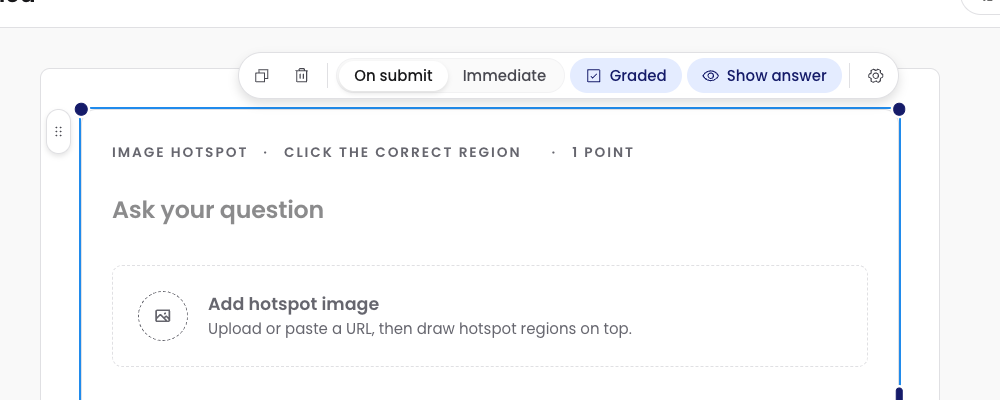
When a block is selected, a small floating menu appears above it. The quick menu shows the settings you change most often, inline, without opening a panel.
What’s in the quick menu depends on the block:
- A multiple-choice question shows feedback mode (immediate / on submit), graded / not graded, show answer, and required.
- A callout shows the variant (info, warning, success, error, tip, note).
- An image shows alignment.
- An embed shows the aspect ratio.
The point is to avoid a trip to the settings sheet for the things you touch most.
The settings sheet
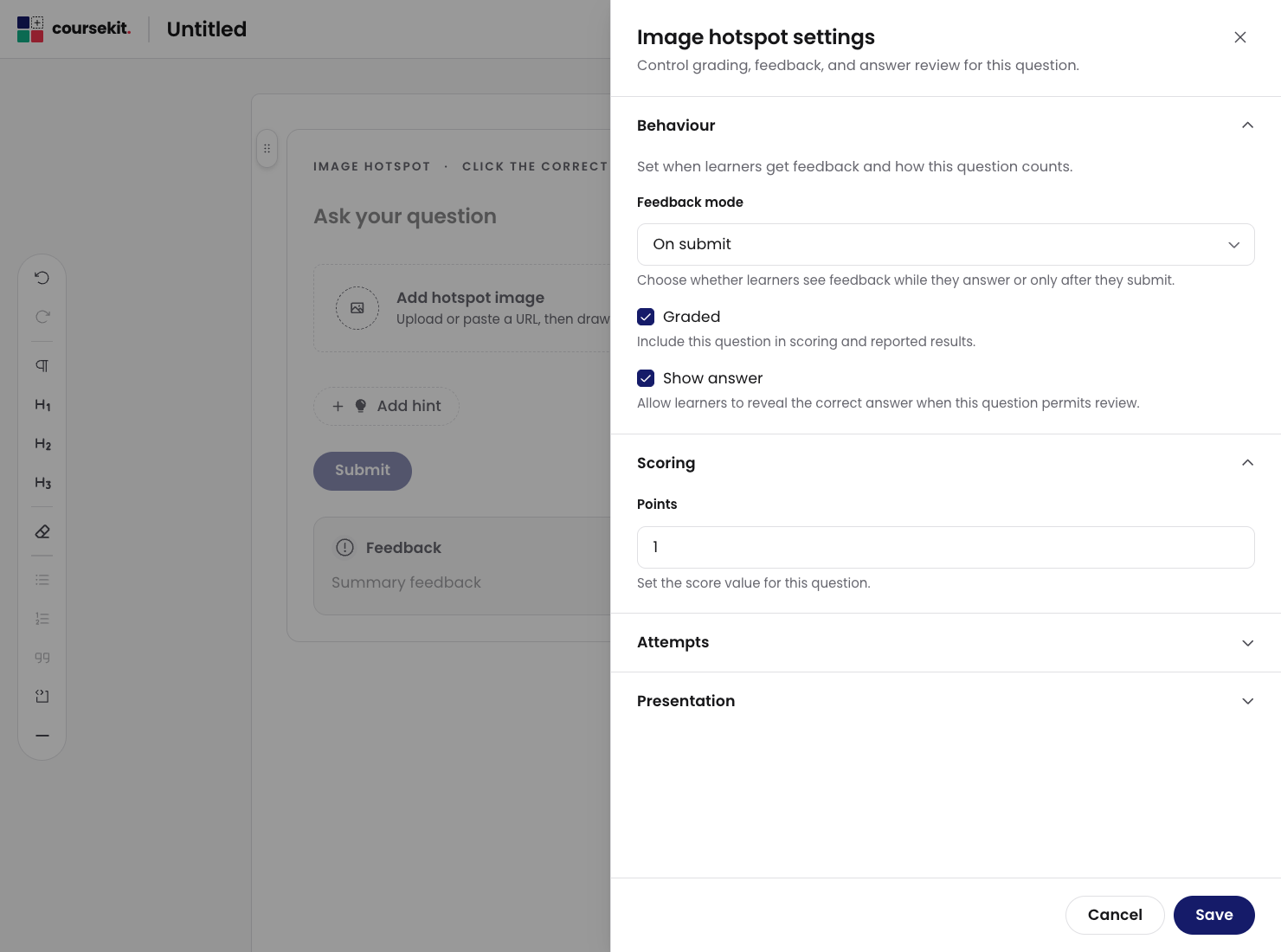
For everything else, open the settings sheet. Click the gear icon in the quick menu to open it.
The settings sheet opens on the right side of the editor, listing every configurable property of the block. Properties are grouped into sections (Scoring, Attempts, Presentation, Feedback, and so on) that you can expand or collapse.
A multiple-choice question’s settings sheet has:
- Scoring: points, graded toggle, partial credit (where applicable).
- Attempts: maximum attempts, what happens when they run out.
- Presentation: show answer, required, feedback mode.
- Feedback: how feedback is displayed on submit.
Other blocks have their own sections. The sheet only shows settings that apply to the block you’ve selected.
What’s next
- Keyboard shortcuts lists the shortcuts that work across the editor.
- How grading works explains the points, partial credit, and feedback mechanics that the settings sheet controls.